Step 01
Getting Into the Portal
On MyBallState, go to Additional Tools and open WebCheckout – Patron Portal. You can also use the Patron Portal link.
- Select the Checkout Center PDF p. 1At the Welcome to Patron Portal screen, choose CAP Laser Machines, then select OK.Choose the correct lab: AT FAB Lab is a separate facility in the Applied Technology Building.
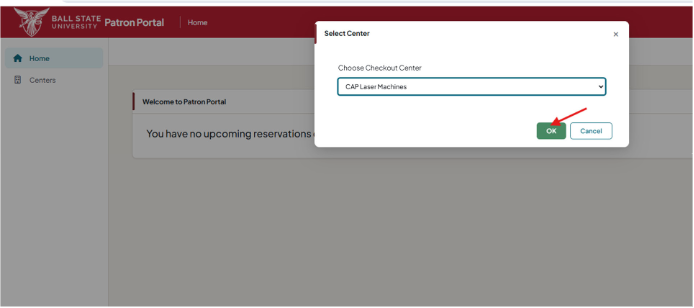 Choose CAP Laser Machines, then OK (PDF p. 1).
 - Read the Posted Hours PDF p. 2Read the Message of the Day with the posted lab hours, then dismiss it to continue.
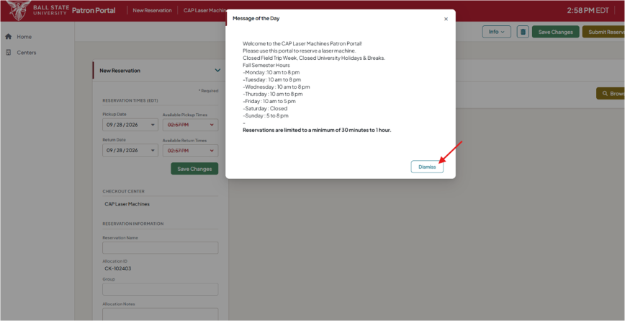 Read the posted hours before choosing an appointment (PDF p. 2).
Quick Facts
What You’re Booking
CAP Laser Machines
Checkout CenterCAP Laser Machines
Machine SizesLarge: 18 × 32 in; Medium: 18 × 24 in
AppointmentsOne-hour increments per day
ApprovalDuring woodshop business hours
No-show Fee$10 charged to your student account
Step 03
Booking a Machine
Choose and save the appointment date and time, select an available machine, then accept the lens agreement and submit the reservation.
- Choose the Date PDF p. 2Choose the date you want for your appointment, then click Save Changes.
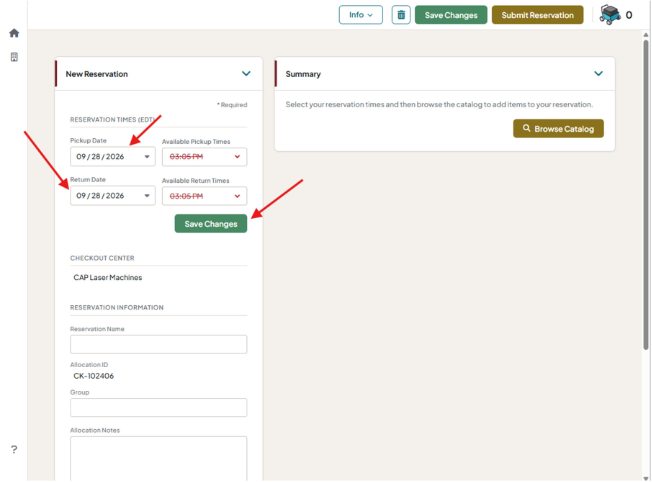 Choose your appointment date, then save changes (PDF p. 2).
 - Choose the Time PDF p. 3Choose the appointment time, then click Save Changes. Appointments are limited to one-hour increments per day.
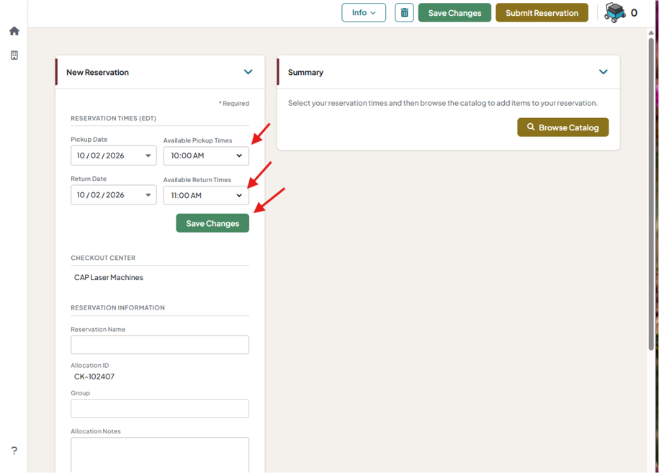 Choose the time and save changes (PDF p. 3).
 - Browse the Catalog PDF p. 3Click Browse Catalog to find a machine available during your desired time slot.
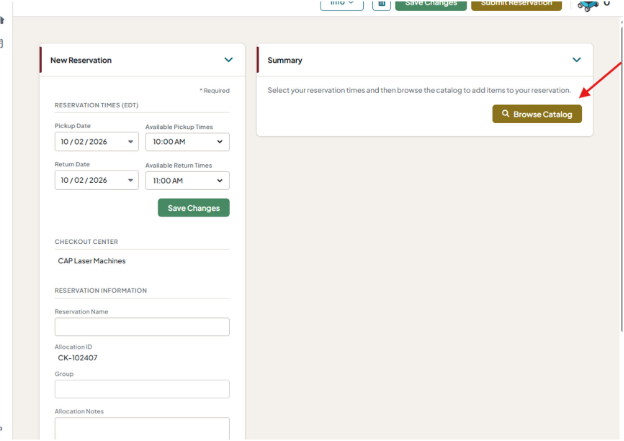 Browse Catalog opens the machine selection (PDF p. 3).
 - Choose the Machine Size PDF p. 4Choose Large, 18 × 32, or Medium, 18 × 24, according to your material size.
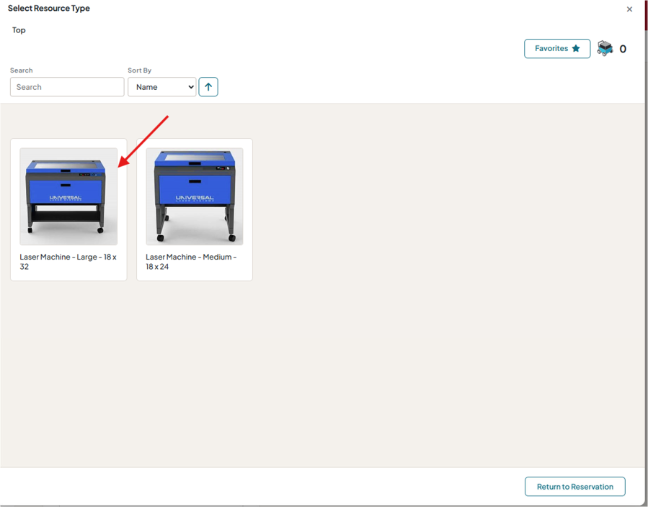 Choose the appropriate machine size (PDF p. 4).
 - Check Availability PDF p. 4–5Use Timeline or the calendar icon to view machine availability.
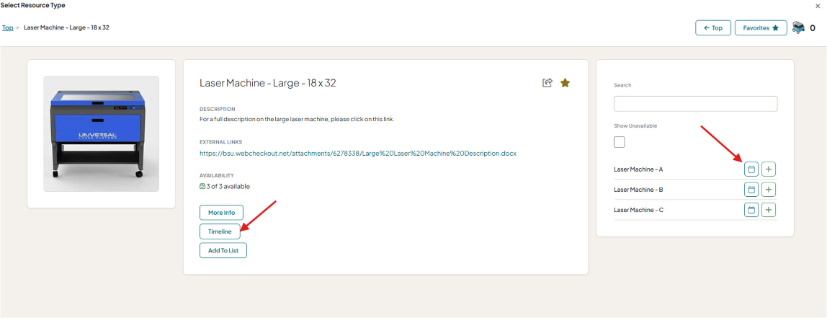 Two ways to check availability (PDF p. 4).
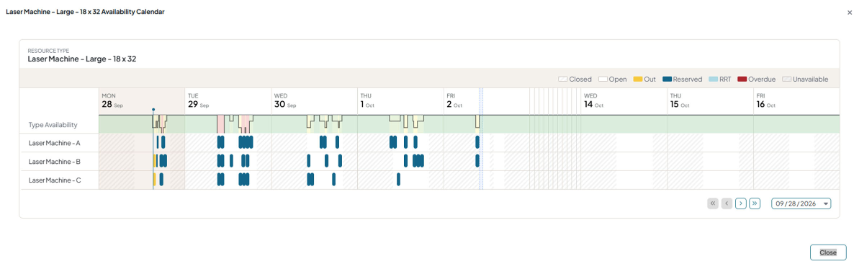 Timeline view (PDF p. 5).
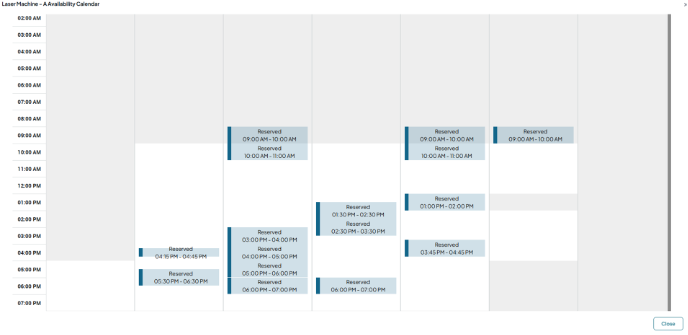 Calendar view (PDF p. 5).
 - Select an Available Machine PDF p. 5Click the plus (+) button beside an available machine to add it. The PDF example selects Laser A; its button then changes to a minus sign.
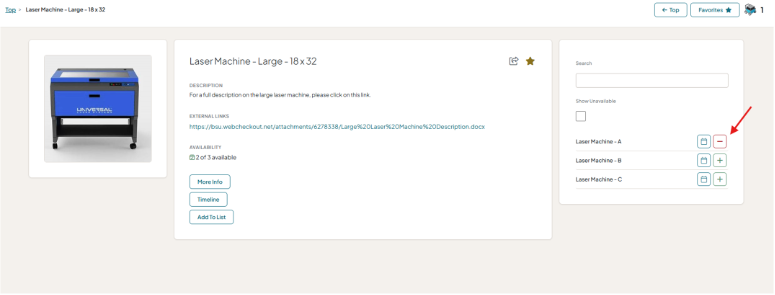 Select your machine; the PDF example chooses Laser A (PDF p. 5).
 - Read and Accept the Lens Agreement PDF p. 6Scroll down and read the laser lab lens responsibility agreement. After you have read it, check the agreement box.
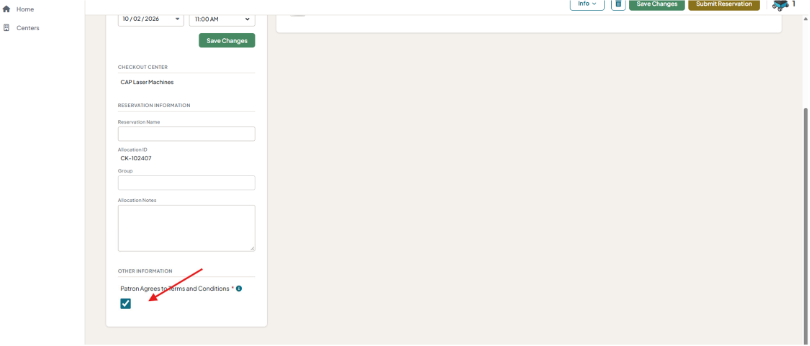 Read the agreement and check the box (PDF p. 6).
 - Save, Then Submit PDF p. 6Click Save Changes to save the reservation, then click Submit Reservation.
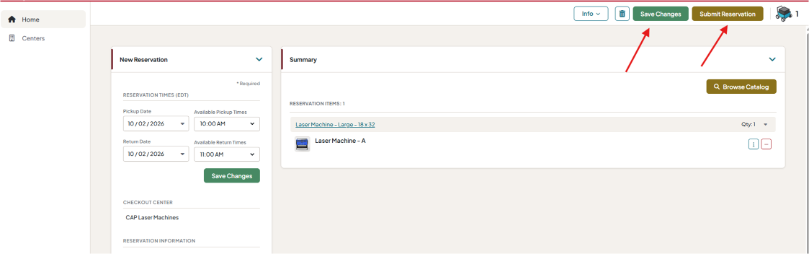 Save the reservation, then submit it (PDF p. 6).
Step 04
Reservation Guidelines
- Appointment Length PDF p. 3Appointments are limited to one-hour increments per day.
- Approval Hours PDF p. 7Reservations are approved during woodshop business hours. Submission and approval are separate stages; watch for the confirming email.
- Cancel Appointments You Do Not Need PDF p. 7If you do not need your appointment, cancel it. No-shows are flagged and charged a $10 fee to your student account.
Step 05
After You Submit
- Submission Email PDF p. 7You will receive an email notification that your reservation has been submitted.
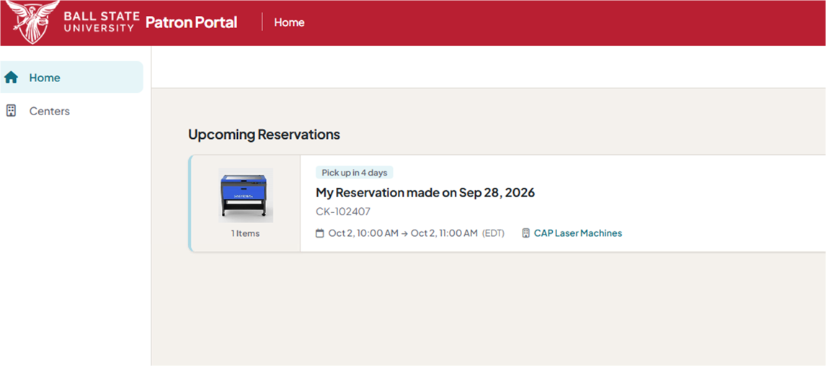 Your upcoming reservation appears in the Patron Portal (PDF p. 7).
 - Approval and Reminder Emails PDF p. 7When the reservation is approved during woodshop business hours, you will receive a confirming email. WebCheckout also sends a reminder one hour before the appointment.
- Plan to Attend PDF p. 7The PDF instructs you to plan to attend even if you have not received the approval confirmation email. Cancel the appointment if you no longer need it.
Step 06
How to Cancel
Cancel through the Patron Portal, with the lab attendant, or by phone during business hours.
- Open Your Reservation PDF p. 7Find the reservation on the Patron Portal home page and click the arrow on its right side.
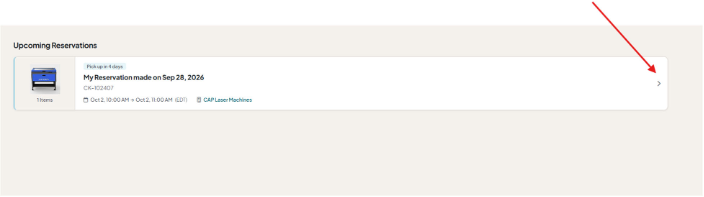 Click the arrow at the right of your reservation (PDF p. 7).
 - Choose the Cancel Icon PDF p. 8Click the circle-with-slash icon to cancel your reservation.
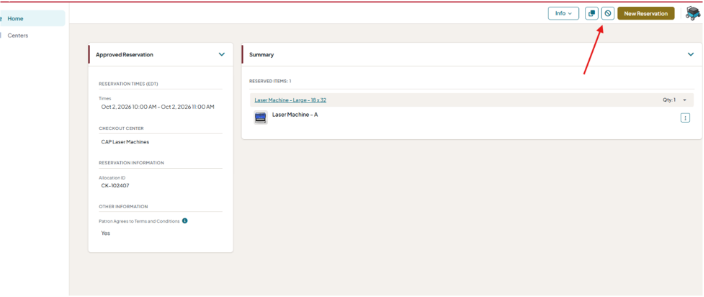 Use the circle-with-slash icon to cancel (PDF p. 8).
 - Check the Cancellation Email PDF p. 8After cancellation, you will receive an email notification that the appointment has been cancelled.
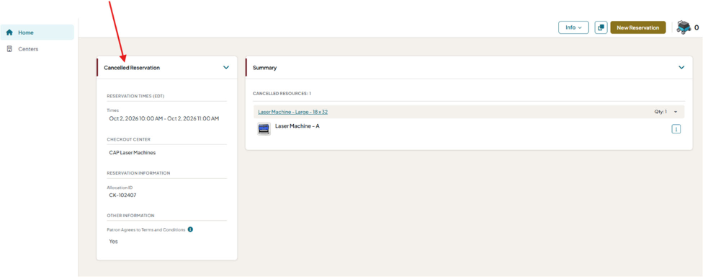 The PDF shows the reservation after cancellation (PDF p. 8).
 - Cancel with the Lab PDF p. 8Alternatively, visit the laser lab and cancel with the attendant in person, or call 765-285-5864. Both alternatives are available during business hours.